 Home Supplies
Keep stock in perspective
Record what you have, set a minimum, and see what is running low. Organize items by category and location.
A little less guessing. A little more order.
Keep everyday supplies in view. Track what you use, remember what to buy, and give every item a place.
For iPhone and iPad · English & Spanish
 Your household, at a glance
Home Supplies
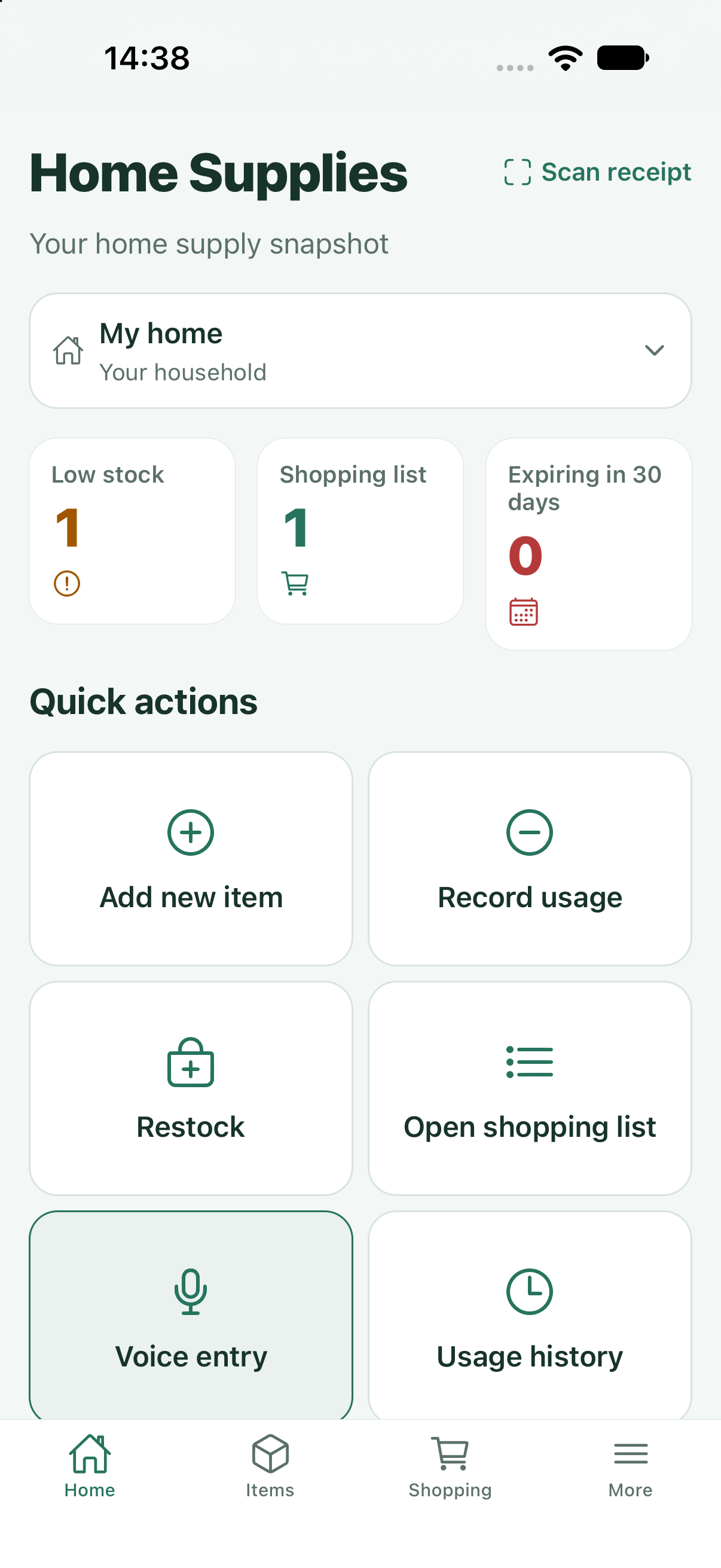
One place for the things your household uses every day, with practical tools that fit the way you keep track.
Record what you have, set a minimum, and see what is running low. Organize items by category and location.
Build a shopping list from low-stock items and add your own. Record a purchase when it comes home.
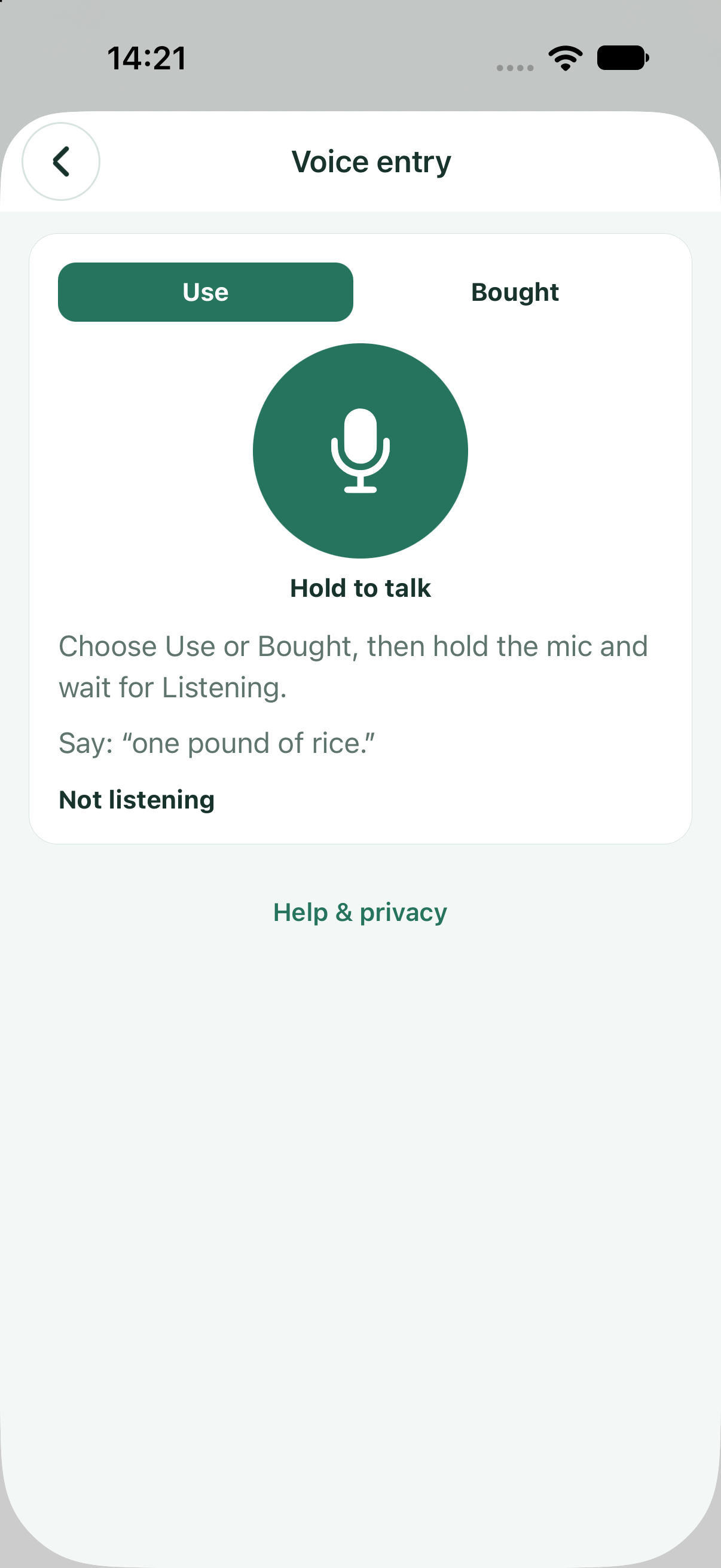
Choose Use or Bought, say the item and amount, then review the proposed changes. On-device Apple speech supports English and Spanish on compatible devices.
Create rice in pounds or kilograms. Later compatible weight or volume entries convert into that original unit; counts do not silently convert into weight.
Add expiration dates and local reminders. Optionally track purchase batches and opened products when those details are useful.
Pin favorites and review usual amounts before repeating a usage or restock. Run-out estimates appear only with enough usage history.
How to use it
You do not have to set everything up first. Start with a few items you use often.
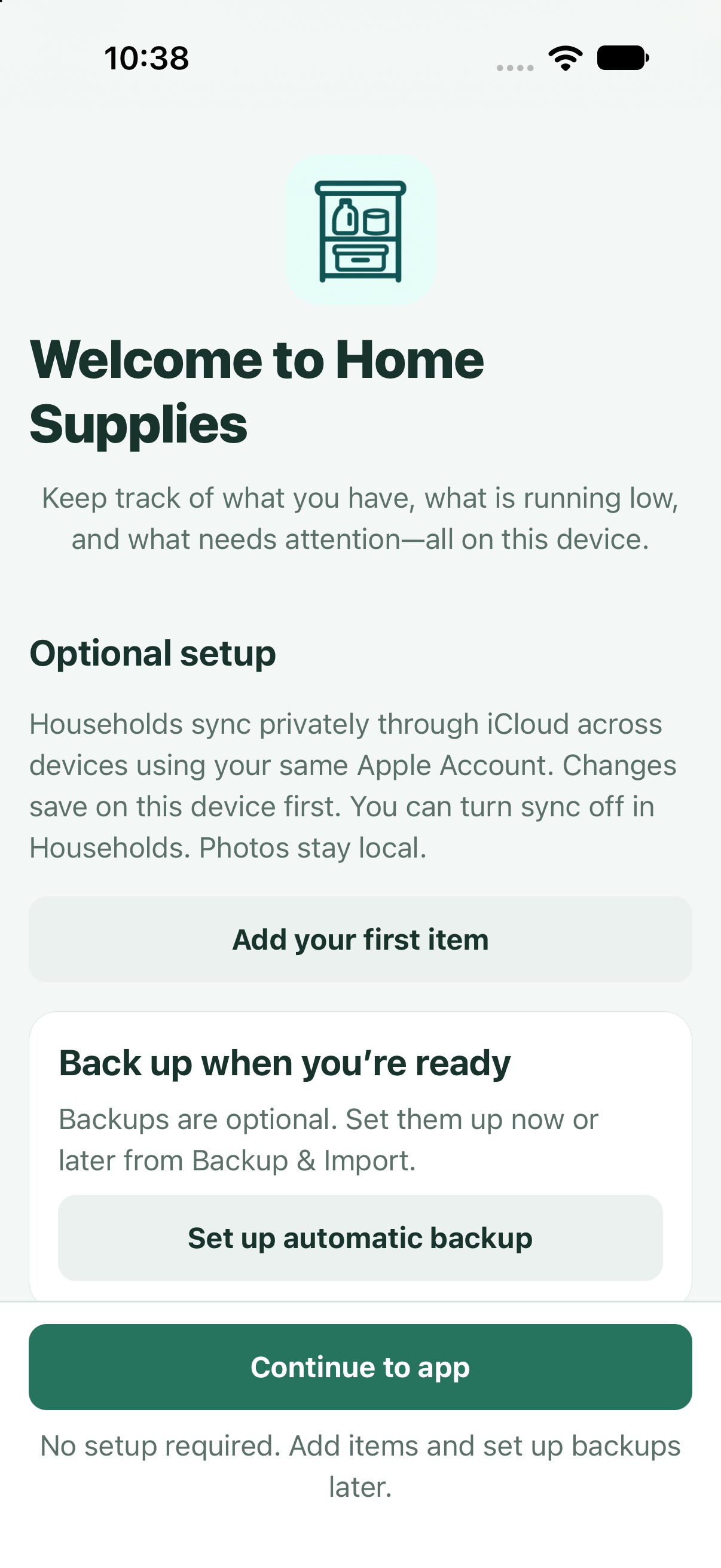
On the welcome screen, choose Continue to app. Adding an item, importing a backup and configuring backups are optional starting points.
Open Items and tap +. Enter a name, the inventory unit and starting quantity. A location, photo and dates can help, but are optional.
Open the item and choose usage or restock. Or open Voice entry, choose Use or Bought, hold the microphone, wait for Listening, then speak. Review and confirm before saving.
Use Home and Shopping to see low stock and upcoming dates. If you ran out without recording every use, review a count of zero instead of inventing usage history.
Enable optional batches, opened-product tracking or Barcode Beta when useful. Review backup and household-sync settings separately.
Real app screenshots from the iOS simulator. These English-language captures show earlier development states; labels and layout can change.
Inventory works locally without a separate app account. Enabled iCloud sync and backups can send records to your chosen cloud destination. Photos stay out of household sync. Voice recognition stays on device.
Optional online barcode lookup is separate: it contacts Open Food Facts only when you choose to look up a code. Your local inventory does not require that service.
Yes. Local inventory works without a separate app account. Manage Sync household per household. Cloud sync needs your Apple Account and a connection; do not rely on it as a substitute for backups.
No. Recognized text becomes a proposed change. Check the item, amount and unit, edit when needed, and explicitly confirm the save. Speech availability depends on hardware, language, permissions and installed local resources.
Enable it in Settings to try local scanning and remember codes for your items. Optional online lookup has a separate opt-in and uses Open Food Facts for unknown codes. Coverage varies; review suggestions before creating or restocking an item.
Different-account household sharing is still being completed and needs device validation. Do not depend on it yet. Same-account iCloud synchronization also needs real-device checks before release.
Email support@tmiga.com. Please avoid sending sensitive inventory, photos or recordings unless needed and you choose to share them.
support@tmiga.com